Play Spinner Evolution on PC
Use Windows Play Games or an emulator, tune mouse aim, and know when your phone is still the better coach.
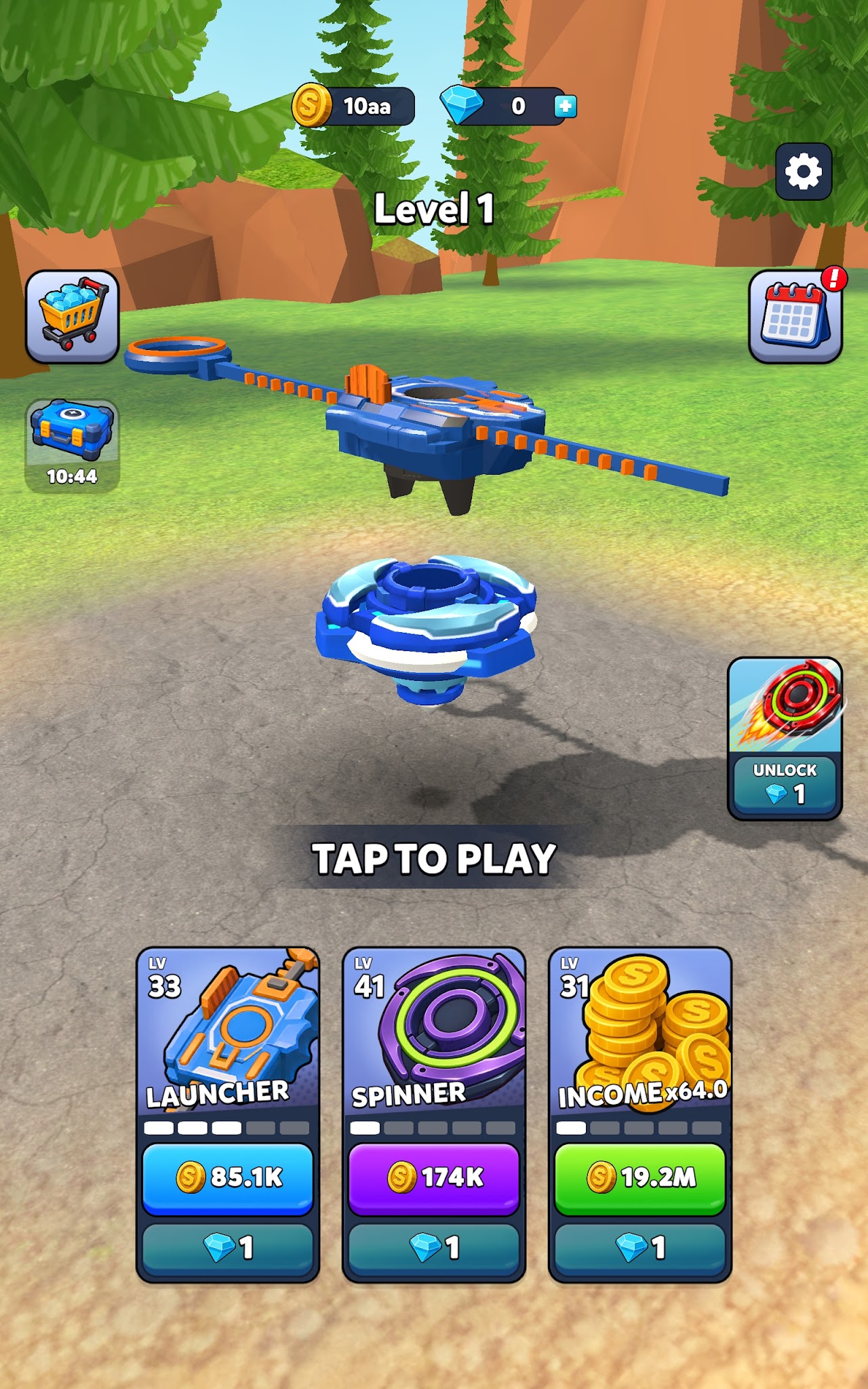
Spinner Evolution is a HyperMonk Games mobile distance racer, but you are not locked to a phone. The game is listed for Android, iOS, and Windows, so a PC session is a supported path for many players—especially via Windows Play Games from the Microsoft ecosystem tied to the Play store listing. Others use Android emulators such as BlueStacks when they want a bigger screen or keyboard-adjacent mouse aim. This guide covers official-leaning PC options, emulator tips, mouse versus touch feel, performance hygiene, progress sync caveats, and the moments when mobile remains the better teacher.
For the aim-and-release skill itself, stay grounded in Controls. For the first-hour economy plan, use Getting Started. Official store and support links live on the Links Hub.
Platform reality check
- Android / iOS: Primary touch audience; best muscle-memory match to most guides and videos.
- Windows: Store listings include Windows / Play Games style distribution—use that official channel when available instead of random sideloaded APKs.
- Emulators (BlueStacks and similar): Unofficial relative to HyperMonk’s own stores, but commonly used. Prefer logging in with the same Google account you use on Android if you care about cloud progress continuity.
Never download “PC exclusive unlocked” APK mirrors. If a site asks you to disable antivirus to install Spinner Evolution, leave and return to the Links Hub store buttons.
Option A — Windows Play Games (preferred when listed)
When Spinner Evolution appears through Windows Play Games / Play on PC style installs:
- Install from the official Windows / Play flow linked from the store listing.
- Sign in with the Google account you intend to keep long term.
- Complete one short Farm run to confirm input and cloud save behavior.
- Set a single control method for the session (mouse or touchscreen laptop—not both).
- Close heavy overlay apps (RGB suites, multiple launchers) before record pushes.
Play Games aims to feel like the Android build with PC input. Expect the same energy, ads, and IAP structure. Purchases should go through official store channels only.
Option B — BlueStacks (and similar emulators)
Emulators help when Play Games is unavailable in your region or you already live in BlueStacks for other titles.
Setup tips:
- Install BlueStacks from its official site; avoid bundleware mirrors.
- Install Spinner Evolution via the emulator’s Google Play layer with your real account.
- Allocate enough RAM/CPU cores so the charge cue does not hitch (stutters destroy release timing).
- Use landscape and a fixed window size; resizing mid-session changes aim feel.
- Map click-hold to charge/release if you use mouse; keep sensitivity moderate.
- Disable unnecessary emulator hotkeys that steal focus during a hold.
Emulator cautions:
- Graphics glitches or odd hit feedback can appear on low presets—raise rendering quality before blaming Durability.
- Some rewarded ads behave differently in emulators; do not soft-lock yourself refreshing failed ad callbacks—restart the app cleanly instead.
- HyperMonk support will still expect legitimate store installs if you report bugs; mention your platform honestly.
Mouse vs touch aim
The loop stays aim → charge → release on every device (Controls). Feel changes:
Mouse strengths
- Micro-aim into gaps that thumbs overshoot.
- Stable charge holds without finger fatigue.
- Easy to repeat the same pixel lane for scout runs.
Mouse risks
- Over-aiming into tiny openings you cannot hit under pressure.
- Releasing on click-up later than your old thumb timing.
- Mixing mouse and touch in one evening and resetting rhythm.
Touch (phone or touchscreen laptop) strengths
- Matches the majority of mobile muscle memory.
- Natural for players who already cleared Farm on a phone.
Practical rule: Pick one scheme per session. If you learned on mobile, consider a week of phone play before forcing mouse PBs on Space. If you are PC-only, drill ten identical Farm launches with mouse until the release beat is boring—then enter denser biomes.
Controller support depends on the Play Games / emulator layer. If a stick is available, watch for dead zones that blur fine aim; widen your target lane instead of fighting tiny corrections.
Performance checklist for clean launches
Distance games hide input lag inside “bad RNG.” Before a grind:
- Cap or unlock FPS consistently—avoid fluctuating frame times during charge.
- Close browsers with dozens of tabs, especially video sites.
- Plug in laptops; power-saving CPU caps create soft releases that feel like weak Launch Power.
- Turn off aggressive mouse acceleration if aim drifts.
- Keep the spinner centered on screen; huge ultrawide HUDs can distract pre-aim.
- After a Windows update or emulator update, re-test five Farm launches before spending gems.
If upgrades “stopped working,” verify performance first. Stats cannot fix a hitching charge cue.
Progress sync and account caveats
Cloud progress usually keys off your Google account on Android / Play Games / emulator Play layers. Apple Game Center / App Store progress is a separate garden.
Do:
- Stick to one primary account per platform family.
- Run a disposable Farm attempt after switching devices to confirm the spinner, coins, and level unlocks match.
- Screenshot important evolve unlocks if you are mid-migration.
Do not:
- Assume iOS progress will appear on BlueStacks without an official cross-play account link HyperMonk documents.
- Run modded APKs on an emulator and expect support to restore a corrupted save.
- Share accounts across friends—purchases and bans travel with the login.
If progress fails to appear, wait for a stable connection, force-close the app, relaunch once, then contact support@hypermonkgames.com via details on the Links Hub rather than installing a “save fix” tool.
When mobile is still better
PC is great for comfort. Mobile is often better when:
- You are learning release timing for the first time—thumb feedback is what most tutorials assume.
- You play short energy windows away from a desk.
- Emulator ads or overlays break focus more than phone ads.
- You want the exact feel of a friend or creator’s phone footage.
Many strong players draft upgrades on PC notes, then execute record pushes on the device that feels most consistent. Use Getting Started on whichever screen you will actually grind.
PC session template
- Launch via Play Games or BlueStacks; confirm account.
- Five Farm timing launches with today’s input device only.
- Scout or push your target biome.
- Fail-tag upgrade once.
- Optional rewarded ad if it behaves correctly on PC.
- Stop before performance or focus drops.
Related reading
- Controls — aim, release, Windows input notes
- Getting Started — first-hour plan that works on any device
- Links Hub — official Google Play, App Store, and HyperMonk links
Play on the screen that keeps your release honest. Official Windows access and careful emulator setups are both valid—fake PC unlock sites are not.
Frequently Asked Questions
Quick answers to the most common Spinner Evolution questions.
Can I play Spinner Evolution on PC officially?
Yes—the game is listed for Windows in addition to Android and iOS. Prefer Windows Play Games / official store flows when available instead of random APK downloads.
Does BlueStacks work for Spinner Evolution?
Many players use BlueStacks or similar Android emulators via Google Play. Use your real Google account, allocate enough CPU/RAM, and avoid third-party unlocked APKs.
Is mouse aim better than touch?
Mouse offers finer aim but can tempt over-precise lines and different release timing. Pick one input method per session and drill Farm launches until the beat is consistent.
Will my mobile progress sync to PC?
Android, Play Games, and emulator Play logins that share the same Google account often continue the same progress. iOS progress is separate unless HyperMonk documents another link. Always verify with a short test run after switching devices.
When should I stay on my phone instead?
Stay on mobile while learning launch timing, playing short energy sessions, or when emulator overlays make ads and focus worse than on a phone.